CARLA 0.9.15 Windows Build Guide
This document provides a practical guide for building CARLA 0.9.15 on Windows.
For the official and complete build procedure, please refer to the CARLA 0.9.15 Windows Build Documentation.
This document follows the structure of Part One: Prerequisites and Part Two: Build CARLA from the official documentation, and focuses on:
Highlighting common issues encountered during the build process
Providing practical solutions and workarounds
Part One: Prerequisites
Please strictly follow the System requirements and Software requirements specified in the official documentation. In particular:
Ensure that the required version of Make (3.81) is used. This version may need to be installed manually (e.g., via Gnuwin), or obtained through other reliable sources.
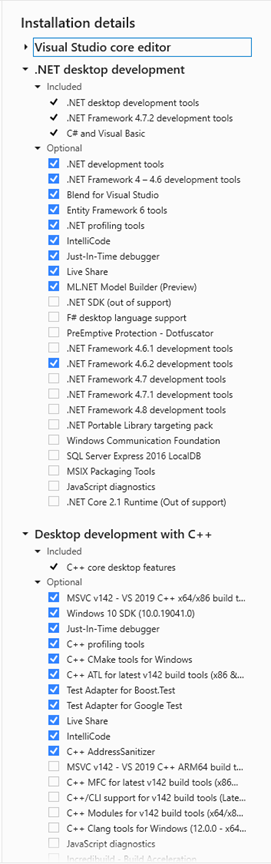
For Visual Studio 2019, make sure the correct MSVC toolset is selected. Note that the Windows 8.1 SDK may no longer be available and can be replaced with the Windows 10 SDK.
The installation and configuration of Unreal Engine 4.26 can be completed by following the official CARLA documentation:
CARLA Windows Build Documentation
Please ensure all dependencies are correctly installed before proceeding to the build stage. Users can verify dependencies using:
- `python --version`
- `pip3 -V`
- `cmake --version`
- `make --version`
- `git --version`
Visual Studio toolset and Windows SDK can be checked via Visual Studio Installer.
Part Two: Build CARLA
This section describes how to build CARLA on Windows. The detailed procedure follows the official documentation, while this section primarily highlights common issues encountered during the build process and provides corresponding solutions.
Clone the CARLA Repository
Clone the CARLA repository from GitHub
Ensure that the correct version/tag (0.9.15) is checked out.
Get assets
Run Update.bat scripts
Download required assets
The assets will be automatically downloaded and extracted if the process completes successfully.
However, in practice, the download via Update.bat may fail due to network issues or version mismatches.
Common Issue: Assets Download Failure
If Update.bat fails to download the assets, a manual workaround is required.
Solution: Manual Download and Extraction
Identify the correct asset version for CARLA 0.9.15: 20231108_c5101a5
The correct asset version can be identified from:
Util/ContentVersions.txt in the CARLA source directory, which maps each CARLA version to its corresponding asset package.
Manually download the corresponding asset package. Extract the downloaded archive to: Unreal/CarlaUE4/Content/Carla
Note: If the target directory does not exist, create it manually.
This manual approach ensures that the correct assets are used when the automated script does not work properly
Locate the file: Util/ContentVersions.txt
This file contains the mapping between CARLA versions and their corresponding asset packages.
Build CARLA
This section covers the build process of CARLA on Windows.
The overall procedure follows the official documentation, while this section focuses on issues encountered during the make PythonAPI step and their corresponding solutions.
Compile the Python API client
Run the following command in the CARLA root directory:
make PythonAPI
During this step, several issues may arise. The most common ones and their solutions are listed below:
Missing dependencies during build (zlib / xerces-c)
Problem: Some dependencies cannot be downloaded automatically during the build process (e.g., zlib, boost, xerces-c).
Solution:
Manually download the required packages: zlib v1.2.13 [xerces-c-3.2.3] (https://archive.apache.org/dist/xerces/c/3/sources/) Extract them into the corresponding Build directory Ensure the folder names match exactly (e.g., xerces-c-3.2.3-source)
Boost download failure in install_boost.bat
Problem: install_boost.bat fails to download Boost automatically.
Solution:
Manually download Boost (e.g., version 1.80.0) Extract them into the corresponding Build directory Ensure the folder names match exactly (e.g., boost-1.80.0-source) or
Modify install_boost.bat (around line 74) to use a valid download source
set BOOST_REPO=https://boostorg.jfrog.io/artifactory/main/release/%BOOST_VERSION%/source/%BOOST_TEMP_FILE%
to
set BOOST_REPO=https://archives.boost.io/release/%BOOST_VERSION%/source/%BOOST_TEMP_FILE%
CMake policy/version error during build
Problem: CMake configuration fails due to policy/version issues.
Solution:
1). Modify the .bat scripts under: Util/InstallerWin
2). Add the following flag to the CMake command:
-DCMAKE_POLICY_VERSION_MINIMUM=3.5
3). Ensure variables such as %XYZ_SRC_DIR% are correctly set if required
%XYZ_SRC_DIR%
to
%XYZ_SRC_DIR%.
CMake issues in OSM build tools
Problem: CMake errors occur when running scripts in:
Util/BuildTools
Solution:
Modify BuildOSM2ODR.bat 1). Add the following flag to the CMake command:
-DCMAKE_POLICY_VERSION_MINIMUM=3.5
2). Modify the line:
%OSM2ODR_SOURCE_PATH%
to
%OSM2ODR_SOURCE_PATH%.
NumPy version incompatibility
Ensure that the NumPy version is < 2.0.0 to avoid build issues